



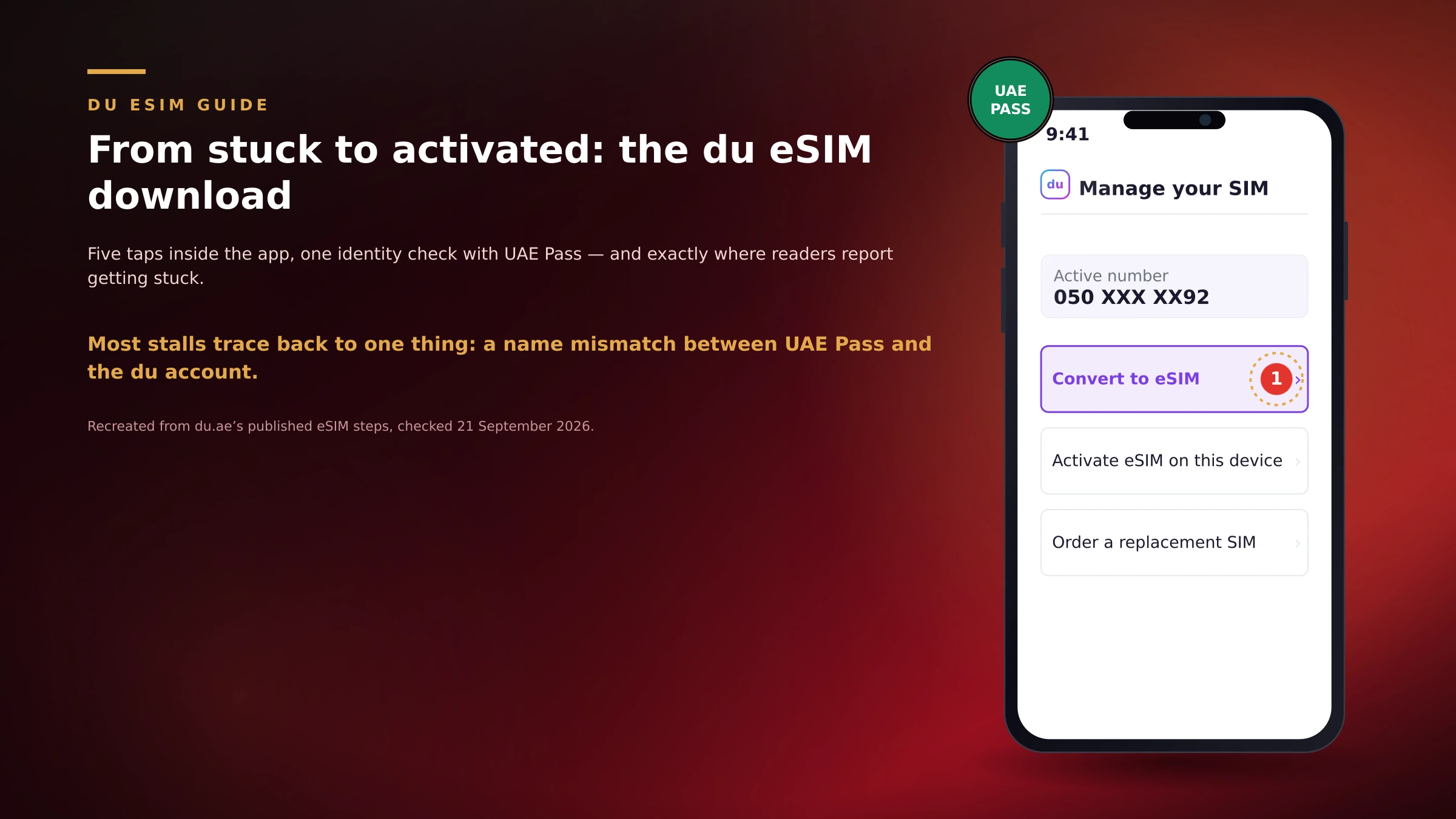

The du app's own path to an eSIM is five taps on paper. In practice, readers get stuck between two of those taps more often than not — usually at the UAE Pass step, or at the moment the app goes quiet for a minute with no progress bar and no explanation. If you've had the same experience, the fix is almost never "start over." It's usually one specific thing on a short list.
Below is the exact sequence inside the app, what UAE Pass is actually asking you to do at each point (it's never explained on screen), and the handful of reasons the download stalls or fails outright. We checked it against du's own published activation steps and against the failure patterns that keep showing up in support threads and app-store reviews — the same three or four culprits, over and over. The illustrations below are a recreation rather than a screenshot of du's own interface; there's a short note on why further down.
TL;DR — the short version
- Path in the du app: Home screen → View More (under "Get More Done") or the three dots next to your number → Manage your SIM → select the number → Convert to eSIM (or "Activate eSIM on this device") → verify with UAE Pass → confirm installation.
- UAE Pass does the identity check — a face scan or PIN, the same one you'd use for any UAE government or banking app. If the name on your UAE Pass profile doesn't match the name on the du account exactly, this step fails silently or throws a generic error.
- Converting an existing physical SIM to eSIM through the app is free. A brand-new eSIM line costs AED 55 (prepaid) or AED 125 (postpaid) plus 5% VAT, per du's published pricing — confirm the current figure in-app before you commit, since carrier pricing changes.
- The three most common stalls: a name mismatch between UAE Pass and the du account, a weak or captive Wi-Fi network interrupting the download mid-way, and trying to activate on a device that doesn't actually support eSIM.
- eSIMs install once. If you delete the profile from your phone, you cannot simply re-add it — you'll need a new QR code from du. Don't delete it "to try again."
What's in this guide
- Before you start: the checklist that prevents most failures
- Step 1 — Get UAE Pass ready
- Step 2 — The exact taps inside the du app
- Step 3 — What happens during UAE Pass verification
- Step 4 — Installing the eSIM profile on your phone
- Troubleshooting: why the download gets stuck
- What it costs
- Is your phone actually eSIM-compatible?
- Frequently asked questions
Before you start: the checklist that prevents most failures
Do these four checks before you even open the du app. Skip them and you're the most likely candidate for a stall halfway through — we see it constantly.
- UAE Pass is installed, logged in, and the name matches. The name on your UAE Pass profile has to match the name on your du account exactly. If you've changed your name — commonly after marriage, or after an Emirates ID renewal — update UAE Pass first. A mismatch doesn't usually show a clear error; the verification just fails, and you're left guessing why.
- Your phone actually supports eSIM. Not every device does, and the setting is easy to miss. See the compatibility section below before you spend ten minutes on a device that can't accept the profile.
- You're on stable Wi-Fi, not patchy mobile data or a hotel/office captive portal. du's own guidance is explicit that the connection needs to stay live throughout — the profile download is a single continuous transfer, and an interruption partway through is one of the most common causes of a "stuck" eSIM.
- Your battery is above 50%. Low-power mode and low battery can interrupt the final installation step on both iOS and Android.
Step 1 — Get UAE Pass ready
UAE Pass is the government digital identity app that verifies who you are before du hands over the eSIM profile — the same verification layer used for Emirates ID services, banking apps and most other regulated UAE processes. You need an active UAE Pass account before you start the du app steps, not during them.
- Open the UAE Pass app and confirm you can log in normally (PIN, face ID, or fingerprint — whichever you set up).
- Go to your profile and check the full name shown matches your Emirates ID and your du account exactly, including spelling. This is the single most common point of failure in the entire process.
- Confirm your UAE Pass account is at "Digital ID" level or higher, not just "Basic" — some UAE Pass actions used by carriers require the upgraded verification level, which itself needs an in-person or video KYC step if you haven't done it before.
- Leave the app running in the background. You don't open UAE Pass manually during the du steps — du will trigger a UAE Pass prompt automatically and hand control to it for a few seconds.
If you've never used UAE Pass before, set it up a day ahead rather than in the middle of moving your number to eSIM. First-time UAE Pass verification can involve an identity check that takes longer than the rest of this guide combined.
Step 2 — The exact taps inside the du app
du has changed the exact wording of this menu more than once, so you may see either of two entry points depending on your app version. Both lead to the same place.
- Open the du app and make sure you're logged into the account that owns the number you want to convert.
- From the home dashboard, look for a tile labelled "Get More Done" and tap "View More" underneath it. If your app version doesn't show this tile, tap the three dots (⋯) next to your active number instead — both open the same menu.
- Tap "Manage your SIM."
- If you have more than one number on the account, select the specific number you're converting.
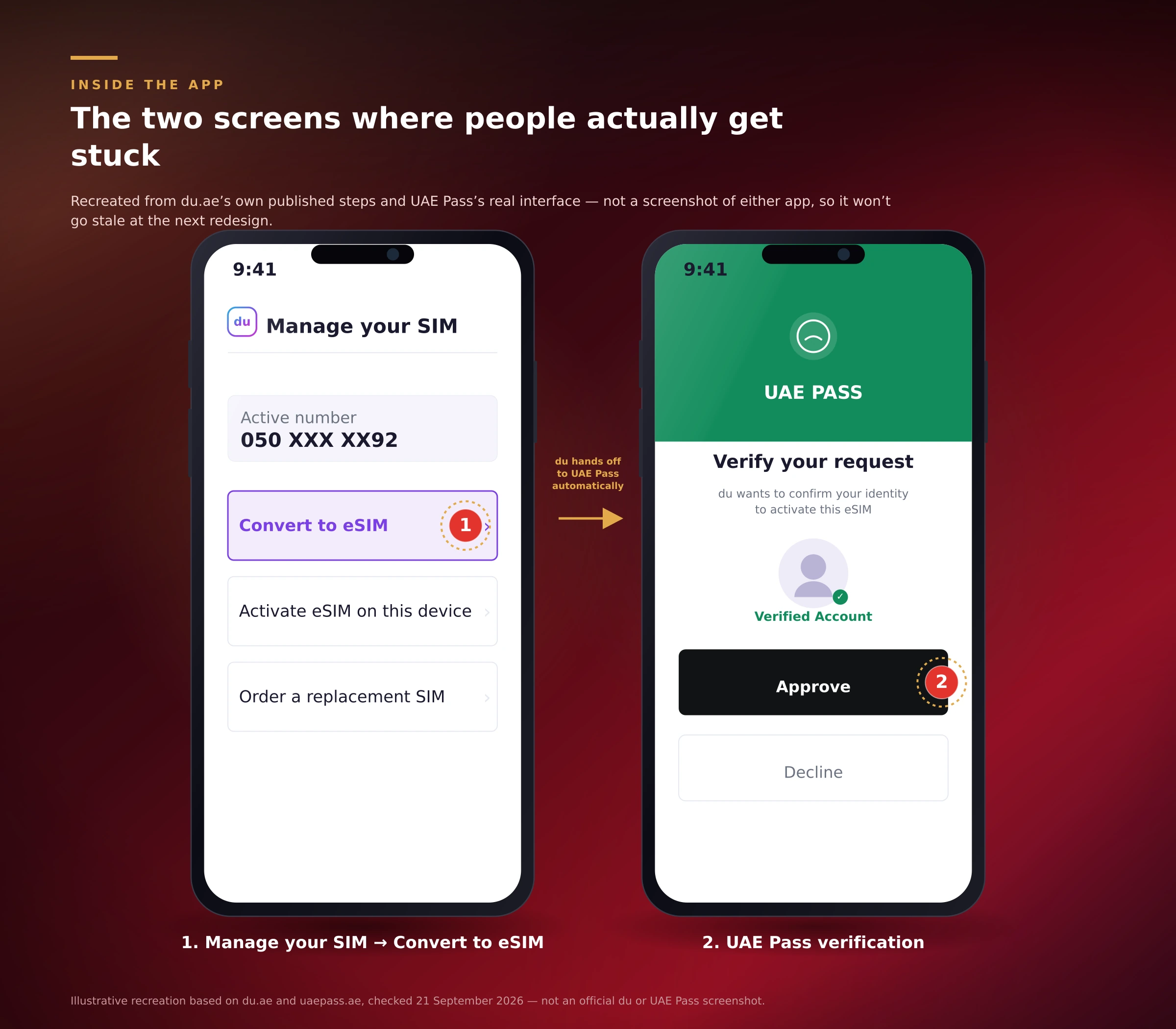
- Tap "Convert to eSIM" if you're moving from a physical SIM, or "Activate eSIM on this device" if you're moving an existing eSIM to a new phone.
- Review the terms shown on screen and tap to agree — this is a standard consent step, not a separate action.
- The app now hands off to UAE Pass automatically. Continue to the next section.
Step 3 — What happens during UAE Pass verification
This is the step most guides skip over in one sentence, and it's where most downloads actually stall. Here's what to expect, in order:
- Your phone switches to the UAE Pass app (or a UAE Pass verification screen inside du, depending on version) automatically. You don't need to open UAE Pass yourself.
- You'll be asked to confirm a pending request — this is du asking UAE Pass "is this really the account owner?" Tap to approve it.
- Complete the biometric check: a face scan or your UAE Pass PIN, the same method you already use to log into UAE Pass.
- UAE Pass asks you to allow du to access your Emirates ID details for this one request. This is a standard permission prompt, not a new account link — approve it to continue.
- You're returned automatically to the du app, which should now show the eSIM request as approved and begin the download.
If this step times out, fails, or leaves you stuck on a blank UAE Pass screen, do not repeat it immediately. Close both apps fully, reopen UAE Pass on its own first to confirm you can still log in normally, then restart the process from the du app. Repeating a failed biometric check back-to-back without closing the apps is one of the more common reasons people report the same failure twice in a row.
Step 4 — Installing the eSIM profile on your phone
Once du approves the request, the profile either installs itself automatically inside the app, or — on some du app versions and for most Android phones — you're sent an eSIM QR code by email or shown one on screen, which you then add manually through your phone's own settings. Both outcomes are normal; which one you get depends on your device and app version.
If you're asked to add it manually:
- iPhone (iOS 16 and later): Settings → Cellular / Mobile Data → Add eSIM → Use QR Code, then scan the code from the email or the du app screen. Newer iPhones can also use "Transfer from Nearby iPhone" if you're moving from another Apple device already carrying the profile.
- Samsung Galaxy: Settings → Connections → SIM Manager → Add eSIM → scan the QR code.
- Google Pixel: Settings → Network & Internet → SIMs → Add SIM → Using a QR code.
- Other Android phones: Settings → Network & Internet (or Mobile Network) → Add eSIM / Add Mobile Plan, then scan the QR code. Menu wording varies by manufacturer.
Give it a minute after scanning — the profile has to download and the network has to provision the line on du's side, and that second part isn't instant. Keep the phone on Wi-Fi until you see the number appear as active in your signal bar or Settings.
Troubleshooting: why the download gets stuck
Roughly in the order we see them reported, here's what's usually actually going on.
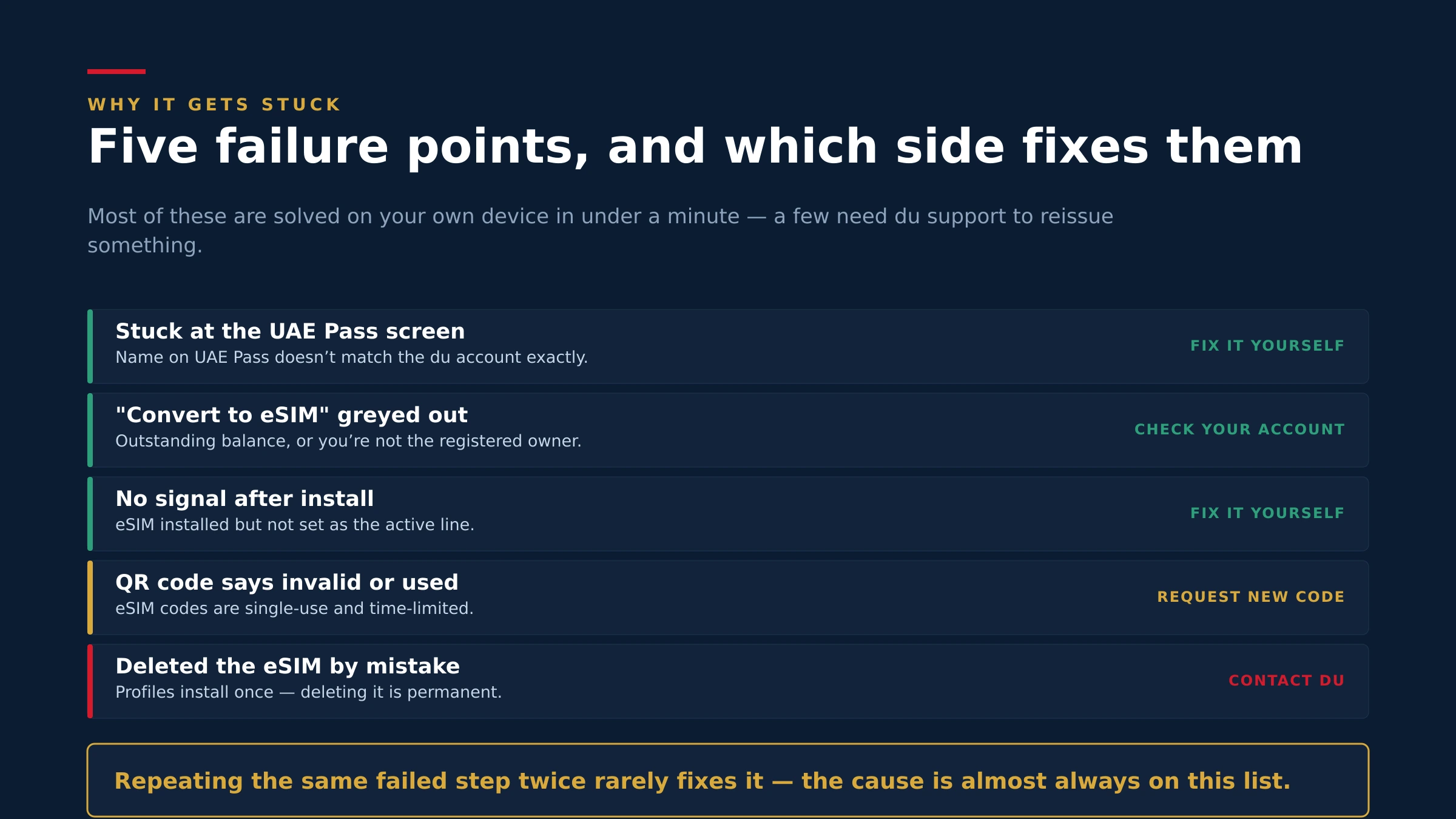
Stuck or stalled at the UAE Pass screen
Almost always a name mismatch between UAE Pass and the du account, or a UAE Pass account that's still on "Basic" verification instead of "Digital ID." Close both apps, open UAE Pass by itself, check your registered name against your Emirates ID, and upgrade the verification level if needed before trying again.
"Convert to eSIM" option is missing or greyed out
This usually means the account has an outstanding balance, a contract restriction, or the line is a corporate/business number that needs sign-off from a company signatory through the du Business portal first. It can also appear if you're logged into the du app with an account that isn't the registered owner of that specific number.
eSIM downloaded, but there's no signal afterward
Go into your phone's SIM settings and confirm the new eSIM line is set as active (not just installed) and that it's selected for calls and data, not left as a secondary/inactive profile. On dual-SIM phones, check you haven't left the old physical SIM as the default for cellular data.
QR code says "already used" or "invalid"
eSIM QR codes are single-use by design — once scanned successfully, they can't be reused, even on the same phone. If you closed the process mid-way and are retrying with the same code, request a fresh one through the du app or a du store rather than rescanning.
You deleted the eSIM and now have no signal at all
This is the mistake du warns about explicitly: an eSIM profile installs once. Deleting it from your phone's settings to "start over" removes it permanently — it does not go back into the du app for a second scan. You'll need to request a replacement through the du app (via UAE Pass again) or visit a du store with your Emirates ID.
Wi-Fi drops mid-download
Restart the process on a different network if possible. Public or hotel Wi-Fi with a login/captive portal screen is a frequent culprit, because the eSIM download can't tolerate the connection dropping to show you a login page partway through.
| Symptom | Most likely cause | Fix |
|---|---|---|
| Stuck at UAE Pass screen | Name mismatch or Basic-level UAE Pass | Update UAE Pass name/level, retry |
| "Convert to eSIM" greyed out | Outstanding balance, contract, or wrong account | Clear balance; confirm you're the registered owner |
| No signal after install | eSIM installed but not set active | Set new line active in SIM settings |
| QR code invalid | Already scanned once, or expired | Request a fresh QR code — don't rescan |
| Lost signal after deleting eSIM | Profiles are single-use | Request replacement via app or in store |
What it costs
This is du's published pricing at the time of writing. Carrier fees move around more than people expect, so treat this as a strong starting point and let the figure in the app have the final word before you confirm anything:
| Service | Cost |
|---|---|
| Converting an existing physical SIM to eSIM (in-app) | Free |
| Moving an eSIM to a new device (in-app) | Free |
| New prepaid eSIM | AED 55 + 5% VAT |
| New postpaid eSIM | AED 125 + 5% VAT |
| Apple Watch eSIM (cellular) | AED 25 + 5% VAT / month |
If you're simply converting the SIM you already have, you shouldn't be charged anything through the app. If du's app shows a fee for what should be a free conversion, that's worth raising with du support directly before paying — pricing promotions and standard fees have shifted more than once.
Is your phone actually eSIM-compatible?
Before you spend ten minutes on this, check two things:
- Dial *#06# on your phone. If an EID (Embedded Identity Document) number appears alongside your IMEI, your device has the hardware for eSIM.
- Open your phone's network settings and look for an option called "Add eSIM," "Add Cellular Plan," or "Add Mobile Plan." If you don't see anything resembling this, either the phone doesn't support eSIM, or it's been disabled by your device's region settings — some phones sold outside the UAE ship with eSIM restricted by carrier lock.
As a general rule, recent iPhones (XS and later), recent Pixel phones, and recent Samsung Galaxy S/Note/Z-series devices support eSIM — but "recent" keeps moving, and region-locked units are the exception that catches people out. The *#06# check above is more reliable than trying to remember a model list.
A note on why this guide describes taps rather than showing du's own screenshots: du's app interface belongs to du, and its exact screens change without notice — we'd rather describe the current, verified path in text than publish a static screenshot that's wrong within a few months. The steps above are checked against du's own published activation guidance.
Frequently asked questions
How long does du eSIM activation actually take?
If UAE Pass is already set up and your name matches, the whole process — app steps, verification, and download — usually completes in under ten minutes. First-time UAE Pass setup, if you haven't done it before, can add significantly longer.
Do I need UAE Pass to get a du eSIM?
Yes, for the in-app self-service route. UAE Pass is how du confirms you're the registered account holder before releasing the eSIM profile. Without it, your only option is visiting a du store in person with a valid ID.
Why does my eSIM download keep failing at the same point?
Repeated failure at the same step is almost always the same root cause each time — most often a name mismatch between UAE Pass and the du account. Fix the underlying issue rather than retrying the same step repeatedly.
Can I convert to eSIM without going into a du store?
Yes, converting an existing physical SIM to eSIM through the du app is free and doesn't require a store visit, as long as UAE Pass verification succeeds. A store visit is only needed if the app route fails or if you're a new customer without the app.
Is converting a physical SIM to eSIM through the app free?
Yes, per du's published pricing. New eSIM lines (for customers who don't already have a du number) carry a separate activation fee — see the cost table above.
What if the name on my Emirates ID and UAE Pass don't match?
Update your UAE Pass profile first. A mismatch — common after a name change from marriage or an Emirates ID renewal — is the single most frequent reason the verification step fails.
Can I move my eSIM to a new phone later?
Yes, through the same du app menu — "Activate eSIM on this device" on the new phone, verified again through UAE Pass. You don't keep using the old device's profile; a fresh one is issued.
What happens if I delete my eSIM by accident?
The profile is gone permanently — eSIMs are designed to install once. You'll need to request a new one through the du app (with UAE Pass verification again) or visit a du store with your Emirates ID.
My phone doesn't show an "Add eSIM" option. What now?
Dial *#06# first to check for an EID number. If none appears, your specific device or its regional variant doesn't support eSIM, and you'll need to stay on a physical SIM or convert on a different, compatible phone.
Does eSIM activation work if I'm not currently in the UAE?
You'll need a working internet connection either way. du doesn't publish an explicit "must be inside the UAE" rule for standard eSIM conversion, but UAE Pass verification and du's provisioning are built around a UAE-registered account, so completing the process from outside the country isn't something we'd rely on working smoothly — if you hit problems, retrying once you're back on UAE Wi-Fi or data is the most reliable fix.
Can I have my VIP or premium number on an eSIM?
Yes — an eSIM is just a different way of holding the same line; the number itself doesn't change. If you're specifically moving a VIP or golden number and want the fuller picture on device compatibility across all three UAE carriers, see our eSIM and VIP mobile numbers guide.
Does the eSIM QR code expire?
Yes. eSIM QR codes are time-limited and single-use. If too much time passes before you scan it, or you've already used it once, request a fresh one rather than trying the same code again.
Is there a du support number if none of this works?
Yes — du's in-app chat and call centre can trigger a manual eSIM reissue if the self-service route keeps failing. Have your Emirates ID and account number ready before you contact them; it shortens the call considerably.
I just bought a number on MobileNumber.ae — do I follow the same steps?
Once the ownership transfer with the seller is complete and the number is active on your du account, yes — the eSIM conversion steps above apply exactly the same way as for any other du number.
If you're setting this up for a new number
If you're downloading this eSIM because you just bought a du number, make sure the ownership transfer itself is finished first — our verified transfer checklist covers the handover sequence so you're not troubleshooting eSIM issues on a number that isn't fully yours yet. Still shopping? Browse available du numbers on the marketplace, or if you're the one selling, list your number once you've moved everything off it.